How to Configure/Setup Yahoo! Mail in Outlook 2016/13/10/07?
Are you a loyal user of Yahoo! Mail? As you already know Yahoo has discontinued his email services to email application for latest Windows editions such as Window 10. Now, you are only capable to access Yahoo Mail on web based email application. In any case, if you are not comfortable to manage your emails on web browser, then most of the users prefer to choose desktop based email applications. You can use Microsoft Outlook as your desktop based email application to access Yahoo Mail account. Therefore, users need to setup Yahoo Mail in Outlook 2016, 2013, 2010, 2007, 2003, etc. as per their requirement.
As we know that Microsoft Outlook is the most robust email application for Windows users to manage their mailbox data. Outlook has numerous great features for users to manage their inbox emails more productive as compared to web version of Yahoo! Due to versatility, security and easy interface of Outlook, most of the users found it to be very helpful to access email account in Microsoft Outlook.
Outlook permits user to access Yahoo! emails even in an offline mode. This makes most convenient emailing platform for users to access Yahoo email account in Outlook. There are certain factors occurred where Yahoo! Users thought to transfer Yahoo mails to Outlook. This requires to configure Yahoo Mail on Outlook by which users can easily access and manage Yahoo emails in Microsoft Outlook.
Also Read: – How to Export Yahoo to Outlook Directly Without any Hassle?
Setup Yahoo! Mail in Outlook to Access Free Yahoo Emails
In this guide we will go through the simple step by step guide to configure Yahoo emails account in Outlook. Let us make some changes in Yahoo web application, so that we can easily access it in Microsoft Outlook without any restrictions.
Step 1: Enable Less Secure Sign-In Option
- Sign-in to your Yahoo! Mail account.
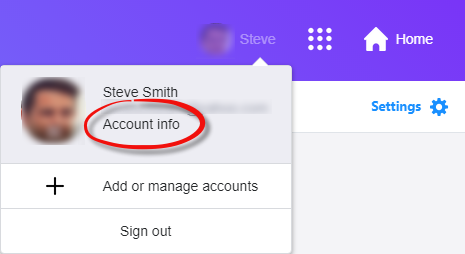
- Click on Profile name and choose Account Info.
- A new window opens and now choose “Account Security” from left sidebar and enable Allow apps that use less secure sign-in option as described below.

Note: This option is not available for those users who enables two-step verification for login.
Step 2: Configure Yahoo! Mail on Outlook
- Launch Microsoft Outlook desktop app in your system (Here, we are using Microsoft Outlook 2016).
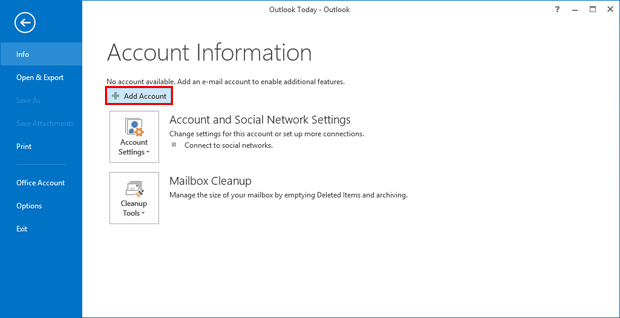
- Go to File >> Info >> Add Account to setup email account.
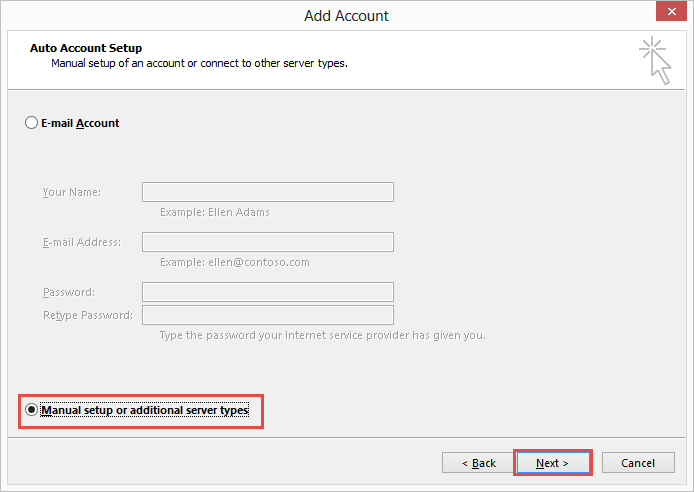
- In Add Account window, choose Manual Setup or additional server types option and press Next.
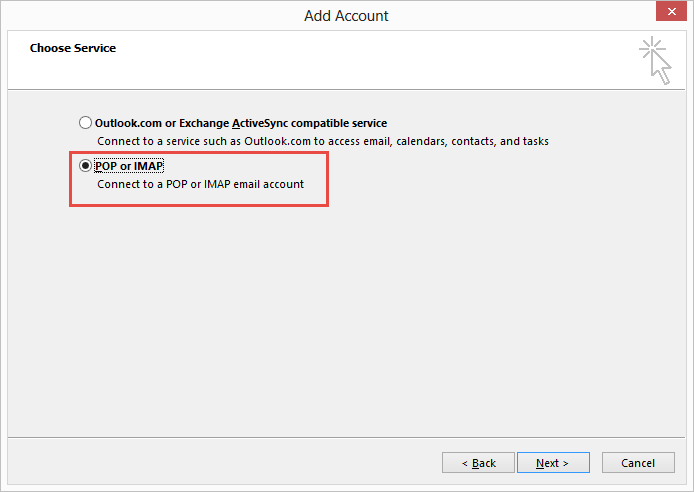
- In next step, choose POP or IMAP option under Choose Service window and click on Next.
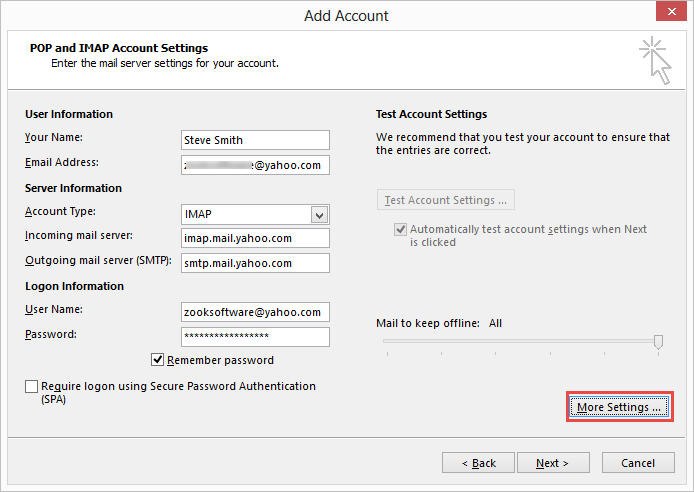
- Under POP and IMAP Account Settings, enter your account information as described below: –
- User Information
- Your Name: Enter First and Last Name
- Email Address: Enter your Yahoo! Email account address.
- Server Information
- Account Type: IMAP
- Incoming Mail Server: mail.yahoo.com
- Outgoing Mail Server (SMTP): mail.yahoo.com
- Logon Information
- User Name: Your Yahoo ID
- Password: Your Yahoo Account Password
- Click on More Settings… and select Outgoing Server tab.
- User Information
- In Outgoing Server tab, enable checkbox My outgoing server (SMTP) requires authentication.

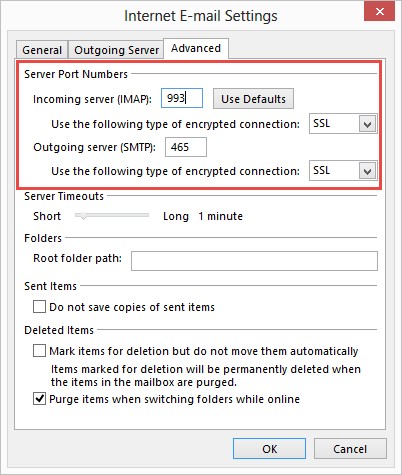
- Now, open Advanced Tab and enter following information.
- Incoming Server (IMAP): 993
- Use the following type of encrypted connection: SSL
- Outgoing Server (SMTP): 465 or 587
- Use the following type of encrypted connection: SSL
- Click on OK.
- Now, click on Next button and wait until your Yahoo! Account gets configured.
- Click on Close.
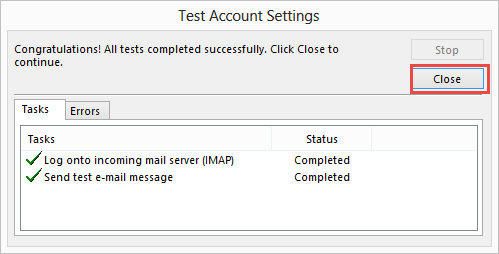
- Finally, click on Finish.
Once your configuration of your Yahoo mail account on Outlook is done, then your entire Yahoo! Mails get synchronized to Outlook. Now, you can easily manage your Yahoo Mails in Outlook.
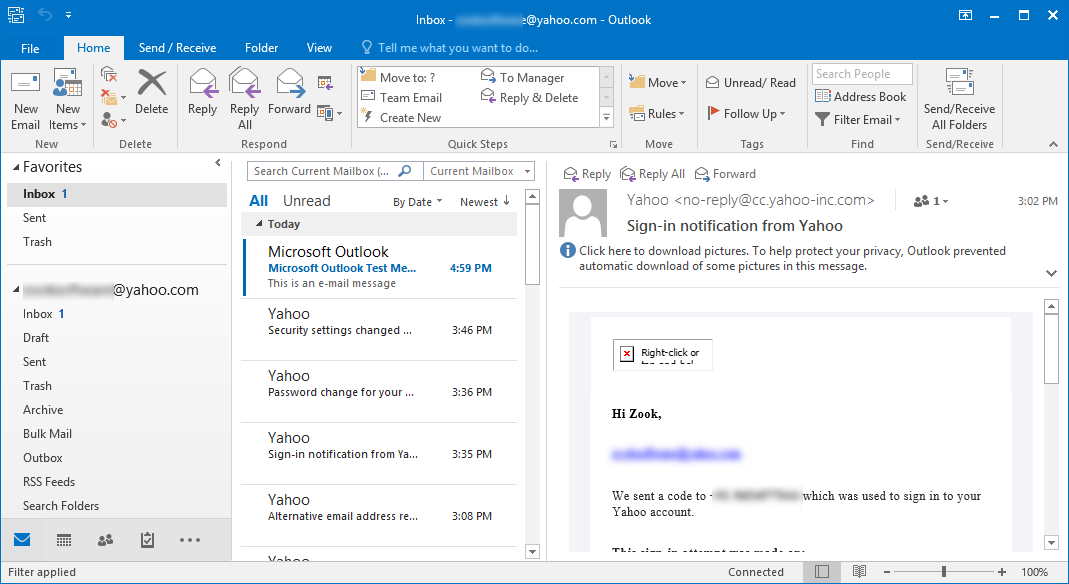
In any case, if you have any issue while setting up Yahoo account in Outlook, then you need to recheck your entries. There may be lots of chances to enter wrong entry due to mistyping mistake. Recheck your entries and setup Yahoo mail account in Outlook without any extra efforts.
Also Read: – How to Configure Gmail Account in Outlook?
Conclusion
In this article, we have provided the simple, smooth and error-free step by step guide to setup Yahoo mail account in Outlook. It helps you to access Yahoo! Mails in Outlook directly without accessing Yahoo web application.
If you find any difficulty, then feel free to contact our technical experts.
